
Squarespace List Sections
The Underrated Layouts I’m Obsessed With
Need to display a team directory? A list of services? Client testimonials? Maybe a bunch of projects with images, descriptions, and buttons that all need to line up nicely?
You could spend an afternoon arranging individual content blocks and stacki’n stacks on stacks in stacks.
Or you could use a List Section.
These are technically called Auto Layouts in Squarespace 7.1, and they're one of the most useful features people tend to overlook. They organize repeating content for you, provide several layout options, and give you plenty of design controls before you need to touch custom code.
And if you want something a little weirder, list sections are easier to customize with code than you might think.


So where are these magical list sections hiding?!
IMHO, they're not as easy to find as they should be.
Open a page in Squarespace 7.1, select Add Section, and browse categories like Team or Testimonials.
Look for a little information icon in the upper-right corner of a section preview. That's how Squarespace identifies its automatic layouts, rather than ordinary sections built with individual blocks.
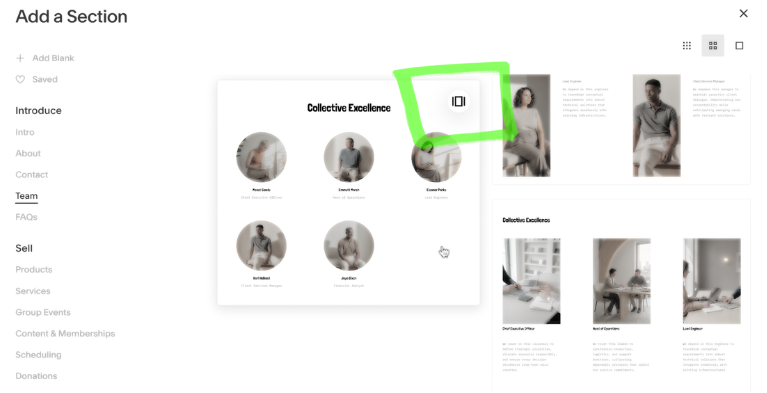
Fun fact: that icon has changed multiple times in the last few months. One day, they were gone completely. Some of my fellow Circle members & I complained nonstop until they brought the icons back. You’re welcome.
Pick one, and don't worry too much about the example content. You're going to replace all of that anyway.

Content first. Design second.
Here's one of the reasons I like List Sections so much.
Instead of manually arranging separate image blocks, text blocks, and buttons, you manage each item as a little collection of content.
Each item can have an image, title, description, and button.
You can reorder the items, add new ones, or remove content without rebuilding the layout.
There are also section-wide options for a title and a button.
But here's something worth knowing: the element visibility settings apply across the entire List Section. If you disable item buttons, for example, you're disabling them for the whole list rather than just one item.
And these aren't like a summary block. You can’t connect it to your blog posts, products, or portfolio collections and have it update automatically. You're managing the list's items manually.
Once you know what you want to share, then we can get into the fun stuff & make it all kinds of awesomely weird.


Three layouts to choose from
-
Simple (that's what this is)
A collection of items arranged in rows and columns.
This is great for team members, service descriptions, feature lists, and anything that needs a consistent structure.
This is my go-to, and what I think Squarespace is trying to replace with the stacks feature.
-
Banner Slideshow
One item at a time, with text displayed over a large background image.
This works well for featured projects, visual storytelling, or a small selection of things you want people to focus on individually.
It's more of a presentation than a traditional list.
-
Carousel
Multiple items arranged in a horizontal, navigable collection.
Think testimonials, featured services, or a collection of projects visitors can browse without scrolling through a long page.
Just remember that important content shouldn't depend on someone discovering a tiny carousel arrow.
Before we add code, you’ll want to explore the built-in design settings for list sections.
You can customize image cropping, spacing, text sizes, card backgrounds, padding, and other details depending on which layout you're using.
You can also adjust the section's color theme and use your site's typography and button styles.
Here's one design detail people sometimes overlook: content length changes the layout.
If one testimonial has three sentences and another has twelve, you may end up with uneven-looking cards or more empty space than you expected.
That doesn't mean every description needs to be exactly the same length, but editing your content for consistency can make a significant difference.
Sometimes the best design fix isn't another line of CSS, it's just deleting a sentence.

In this original tutorial (which is a liiiiiitle outdated , your menu will not look like mine!) I used custom CSS to show how much you can change beyond the built-in settings.
A different background on hover. Unexpected typography. Buttons that react differently when someone interacts with them.
These aren't essential features.
They're creative options.
And they demonstrate an important concept: Squarespace controls the structure, while CSS changes how that structure looks.
Let’s get weird with it!
Here are some of my favorite code tricks to make list sections cool. Give them a try, change some things to make them yours, but most importantly: have fun with your Squarespace website.

-
Customize your list items
This snippet targets individual list items and gives them a border with a little space between the text and the edge.
.list-item{
border:3px dotted blue;
padding:8px
} -
Style bold text in a section title
Want different words in your list title to look completely different? Make those bold using the basic text editor bar that pops up and change the style of them with a code like this:
.list-section-title strong {
color: red !important;
} -
List Button Hover Effects
I love a good hover effect. This code targets the list buttons so they look extra cool when someone interacts with them.
.list-item a:hover {
background: purple !important;
border-radius: 15px !important;
}
TLDR: Still my fav feature.
List Sections are a great example of a Squarespace feature that can do much more than its default preview suggests. Start with the built-in features. Understand how they work. Then customize what needs customizing. And learning how to recognize that opportunity? That's a skill worth keeping.