
Customizing Summary Blocks
Let’s make a very useful Squarespace feature a lot less boring.
Summary Blocks take content you've already created, like blog posts, products, events, or videos, and display it somewhere else on your website.
Want featured recipes on your homepage? A collection of related posts below a blog article? A few products alongside your services? That's exactly what Summary Blocks are for.
The problem is that their default appearance is ridiculously boring. Even with some recent updates that less us add a summary block background and border, the core content still looks rather uh… utilitarian.
This article is a peek at some of my favorite design experiments over the years.



Start with the built-in stuff.
Summary Blocks display content from an existing collection, like a blog or store. You don't create the individual items inside the block but that's what makes them so useful. When you update the original content, the Summary Block updates wherever you've used it.
The design is where we can get a little wild, but before writing a single line of custom code, you should open your Summary Block settings and see what Squarespace already gives you. You can adjust things like image display, text alignment, spacing, metadata, and how many items appear, and there are four main layout options:
WALL A masonry-style collection that staggers content when images are different sizes. Pretty good choice for an editorial look.
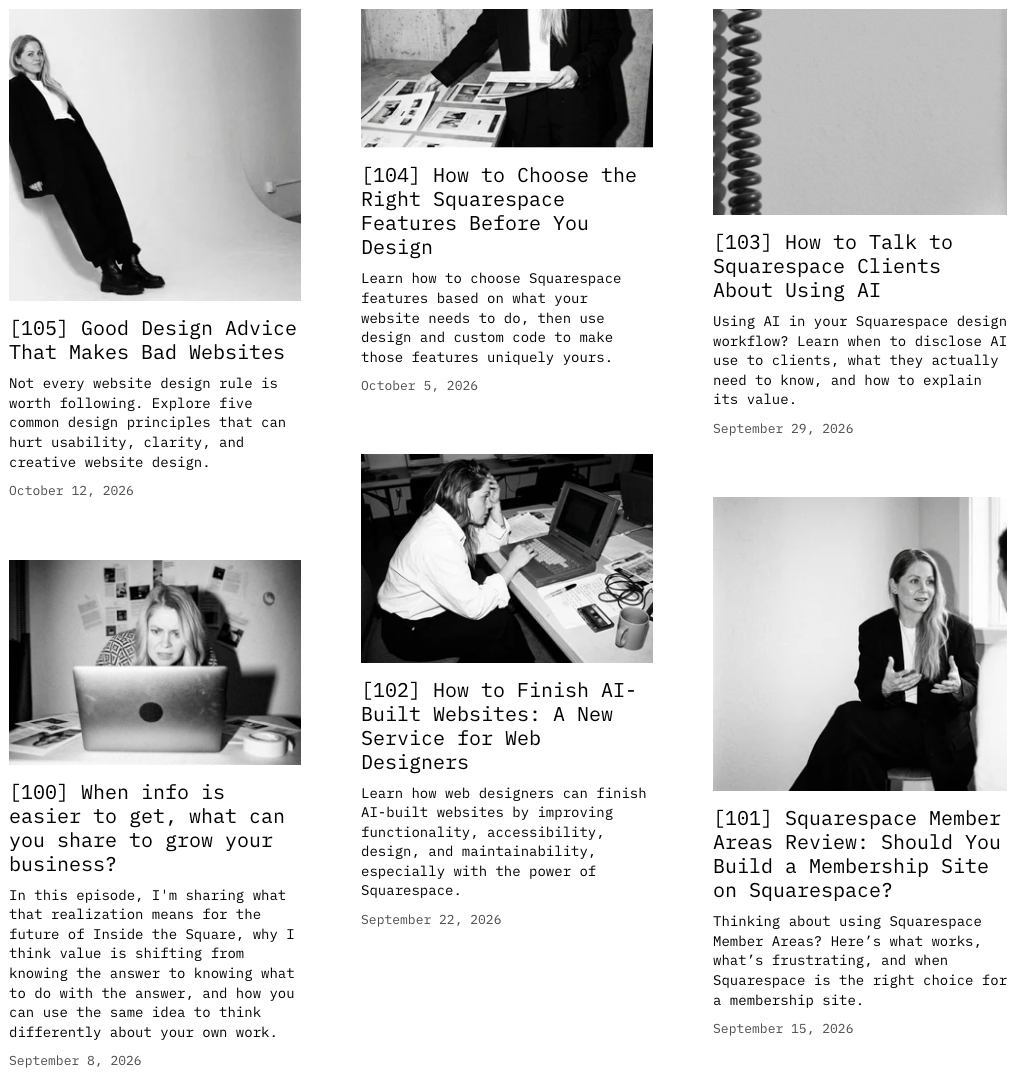
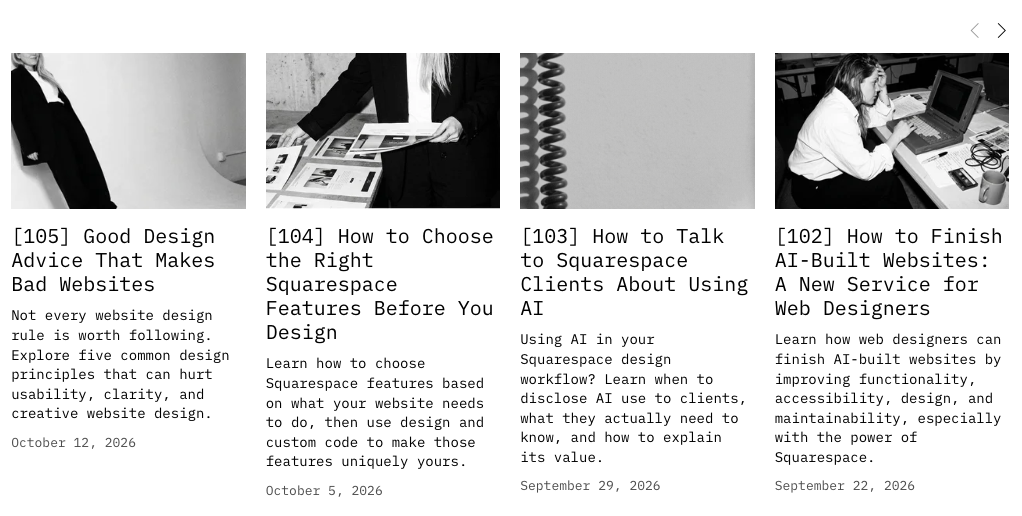
CAROUSEL A horizontal collection visitors can navigate through. Useful when you want to show several items without making the page much longer.
GRID A tidy arrangement of items in rows and columns. Simple, familiar, and easy to scan.
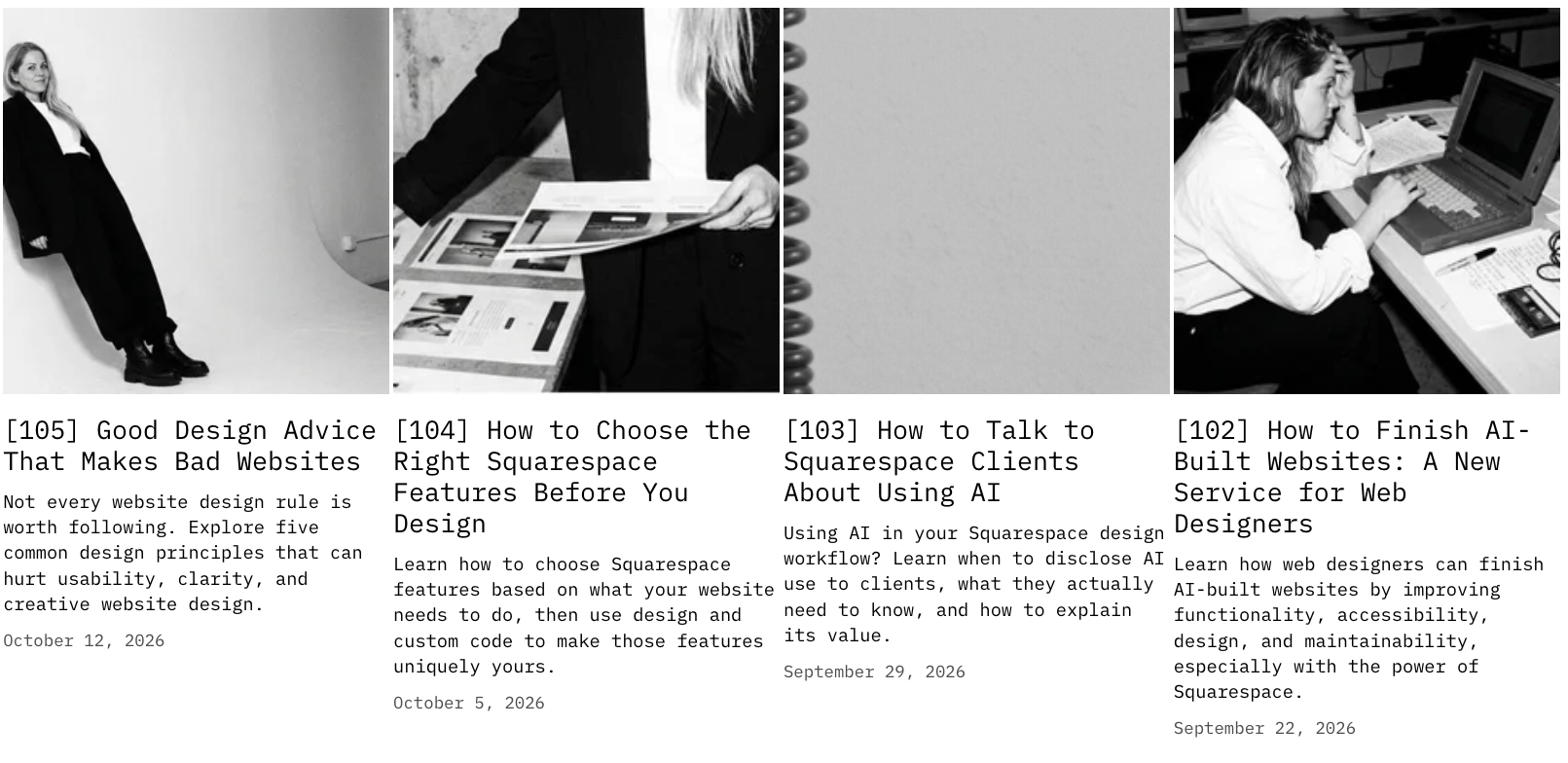
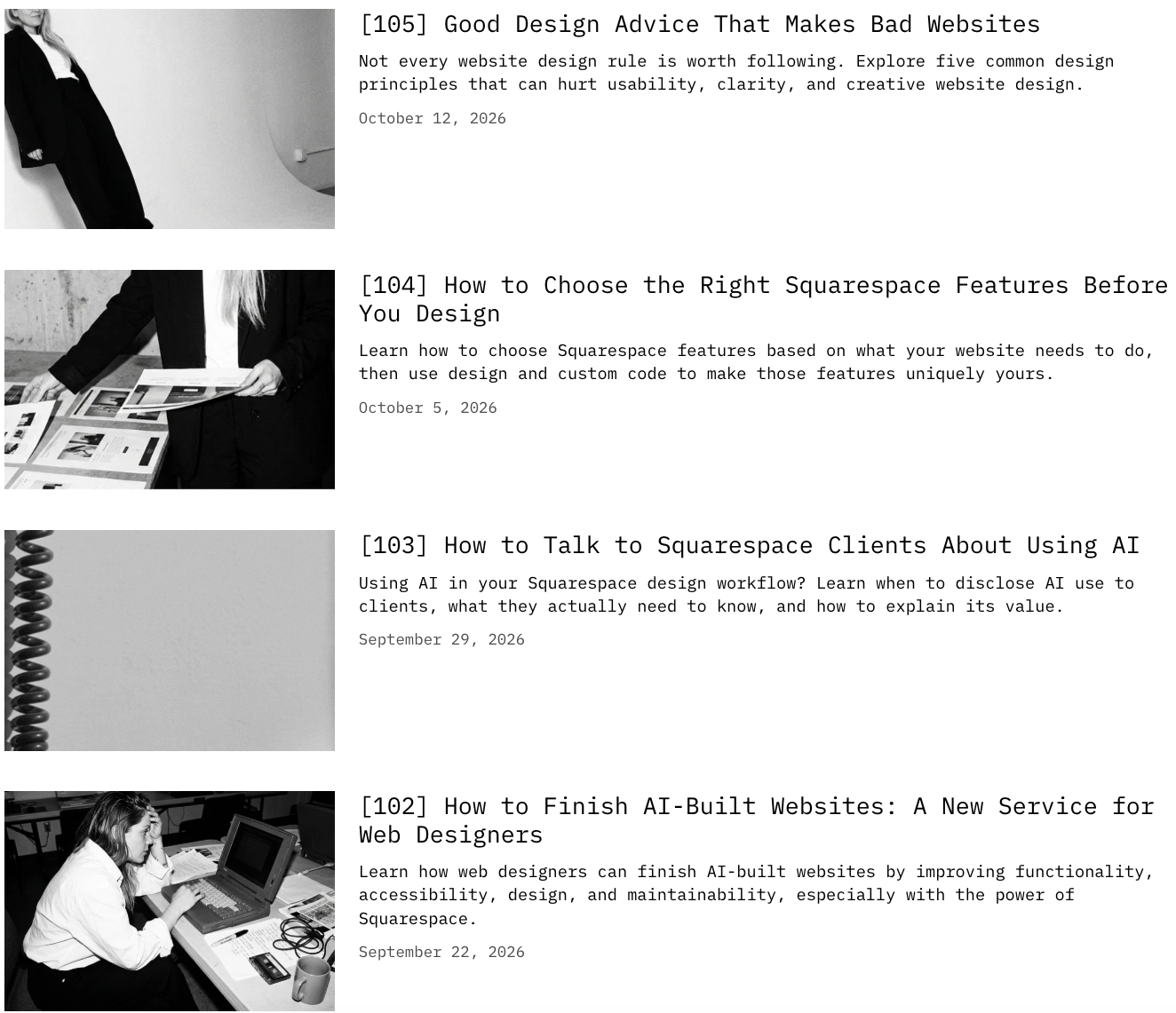
LIST Images alongside text in a single column. Great for articles, resources, or anything with longer descriptions.
Real talk: Those settings were never enough for me.
I wanted more control over the layout, colors, fonts, and hover effects for these summary blocks, so I’ve written code to make that magic happen. Here are my fav summary block mods.
-
Give blog posts the Polaroid treatment.
Take an ordinary blog grid and turn the items into little framed cards.
Add a background, some padding, and a contrasting treatment for the Read More link.
You get something that feels more like a collection of candid photos than a standard blog feed.
.summary-item {
background: white;
padding: 1rem;
padding-bottom: .5rem !important;
} -
Equal height summary items
The equal height option for list sections rocks my Squarespace socks. Summary blocks don’t have the same option, but this super simple code will stretch every item to be the same height as the longest item.
Yeah, it might look a little weird for some setups, but it can also look extra rad for others, so use as you see fit.
Oh, and I added a background color so the change here is obvious. Use it or loose it.
.summary-item{
min-height:100%;
background: orange!important
} -
Create a hover effect for the items
Give each Summary Block item a background color, then change that background and add a shadow when someone hovers over it.
Suddenly a very ordinary grid has personality. You can keep the effect subtle or make it deliberately ridiculous. Your call.
.summary-item {
background: #a1d9dd;
padding: 2rem;
}
.summary-item:hover {
background: lightpink;
}
Sometimes "Read More" is the wrong thing to say.
One of my older tutorials shows how to replace the visible Read More text with something more relevant. The original trick uses CSS to visually replace the existing link text with a pseudo-element, then adds styling to make it look like a button.
Remember that touchscreens (tablets + phones) don't have the same hover behavior because there is no cursor. The design still needs to make sense without the effect.
.summary-read-more-link {
font-size: 0 !important;
}
.summary-read-more-link::after {
font-size: 1rem !important;
border: 1px solid #333;
content: "LEARN HOW →";
background: #e5f5f6;
padding: 0 8px;
}
.summary-read-more-link:hover::after {
background: #333 !important;
color: #fff !important;
}
It's clever BUT it comes with a seriously important to mention limitation: CSS changes the visual appearance, not necessarily the link's accessible name. Someone using assistive technology may still encounter the original wording.
So if you're using the technique today, keep that difference in mind. A visually creative solution shouldn't create a confusing experience for someone else.


Summary Blocks are still one of the most practical ways to reuse collection content across a Squarespace website.
And the original CSS experiments show how much personality you can add to an ordinary feature.
Some of the code may need updating. Some of the ideas may be better accomplished with the built-in tools available today.
But knowing how to tell the difference is part of being a good Squarespace designer.