
Horizontal scrolling images in Squarespace
An old-school CSS trick for making images move across the screen.
Want a row of images that continuously scrolls across your website? Not a slideshow you have to click through. Not a gallery that sits there looking pretty. A moving strip of images, like a good old-fashioned marquee.



Squarespace has offered scrolling text effects for years, but getting images to do the same thing has been a different story.
That's where custom CSS comes in.
This tutorial was originally created for Squarespace 7.1, using a gallery layout and a CSS animation. It's one of the most popular tutorials I've ever published, so it deserves a spot in the greatest hits collection.
The code is older, and Squarespace has changed since I recorded the video. But the idea behind it? Still worth exploring.

First, check out what Squarespace can already do.
Before adding custom code, take a look at the gallery layouts available in your Squarespace editor. You’ll find those inside the images section, at lest at the time of writing this. Look for the little image icon shown here.
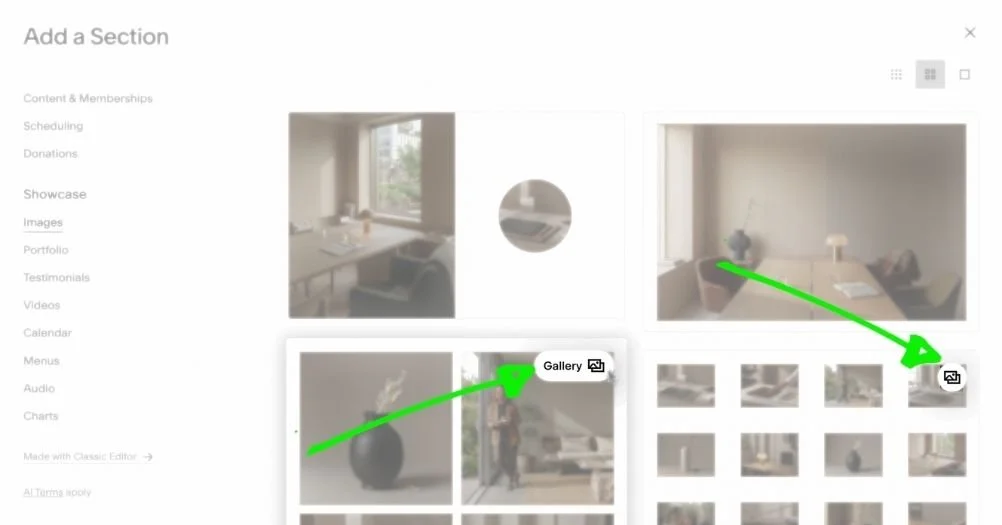
In version 7.1, Gallery Sections include slideshow options, and full has autoplay available.
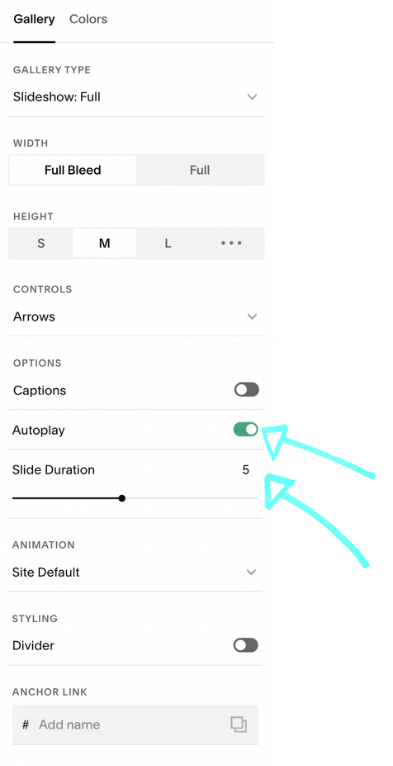
But if you want more than one image moving continuously across the screen, with control over the animation speed and spacing, you'll probably need a more customized solution.
That's what the original tutorial was built to create. More info below.
The original tutorial
FROM THE ARCHIVES / SQUARESPACE 7.1
This video walks through the original process of setting up the images and applying a CSS animation and the steps are outlined below.
A quick heads-up: the Squarespace editor looks different today. Some menu locations, layout options, and underlying code structures have changed since this was recorded.
If you don't see the same settings, don't assume you're doing something wrong. You’re just be watching an older version of Squarespace in action.
01 / Set up your images
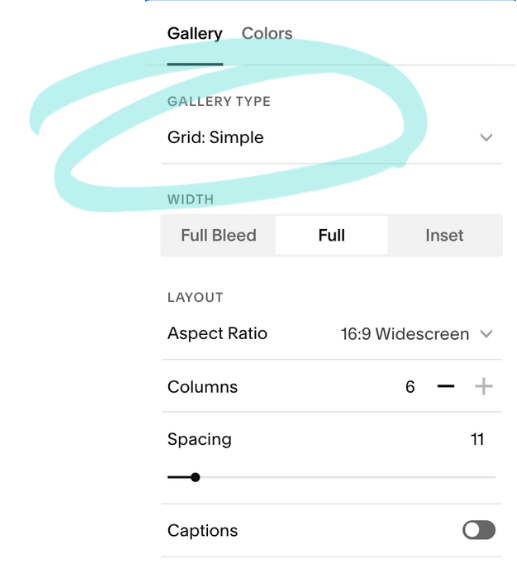
The original approach uses a Squarespace Gallery Section with a Grid: Simple layout.
Open your website editor, add a Gallery Section, and upload the images you want to animate.
Choose Grid: Simple in the section's gallery layout settings.
Make sure you've got your images arranged in the order you want them to appear. Drag and drop them until they are just right.
02 / Add the custom CSS
Here's the code from the original tutorial.
The basic concept is pretty simple.
The gallery wrapper becomes a horizontal flex container. Individual gallery items receive a minimum width and spacing, and a CSS animation moves the collection across the screen.
The animation is designed to repeat indefinitely. If your images seem to “jump” at the end, try adjusting the spacing between them, the ratio, and the -225% part of this code.
#page {
overflow-x: hidden;
}
.gallery-grid-wrapper {
display: flex !important;
animation: slideshow 30s linear infinite;
}
.gallery-grid-wrapper .gallery-grid-item {
min-width: 50%;
margin-right: 5%;
}
@keyframes slideshow {
0% {left: 0;}
100% { left: -225%;}
}
03 / Make it your own
There are three values worth understanding before you start changing things.
Animation speed The original code uses 30s as the animation duration. A longer duration makes the movement slower. A shorter duration speeds things up.
Image size The min-width value controls the minimum width assigned to each gallery item. In the original code, it's set to 50%. Changing this will affect how much room each image takes up in the scrolling row.
How far the images travel The final keyframe contains a percentage that was chosen for the original gallery arrangement. If you change the number of images, their size, or the spacing between them, you may also need to change how far the animation travels.
Those values aren't universal. They're part of the creative control we have as designers.
And this is precisely why understanding what the code is doing matters.
One final thought…
Custom animations are fun. But if the images communicate important information, make sure visitors can access that information without needing to watch them move.
A little movement can make a design more interesting. It should never make the website harder to use.